The following procedure should be undertaken to successfully install OptimumDynamics:
- Run the OptimumDynamics Setup installer. Ensure that you run the setup.exe file and run as an administrator to ensure all components are installed successfully.
- If a security warning popup box appears click Run
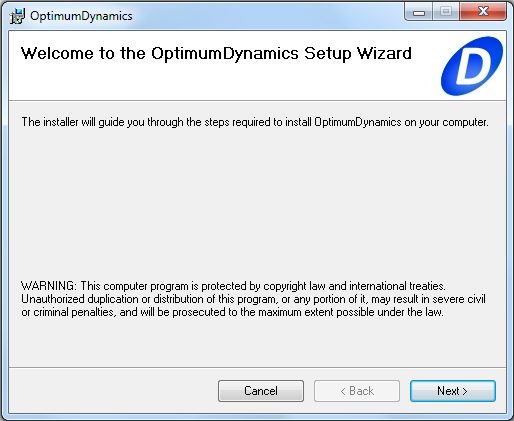
- A setup wizard will open which will guide you through the installation, click Next
- Read through the license agreement and select I Agree, then click Next
- You may select to create shortcut icons on your desktop or start menu, then click Next
- Browse to an installation directory or accept the default location, then click Next
- Click Next to begin the installation
- The installation should begin and there will be a progress bar to update progress. If a popup appears asking you to give permission for the program to make changes, click Yes
- Once the installer finishes click Close
- The program should now be successfully installed, you can run the program from the start menu or from the icon generated on your desktop
If you have any issues during installation, please contact us at software@optimumg.com or by phone at +1 303 752 1562