At multiple points during the design, simulation and analysis process a 3D visualization is possible. This is possible for the following:
-
Design - Tire Stiffness
-
Design - Tires
-
Design - Chassis
-
Design - Springs
-
Design - Bump Stops
-
Design - Coilovers
-
Design - Suspensions
-
Design - Brakes
-
Design - Drivetrain
-
Simulation - Vehicle Setup
-
Results - Result Files
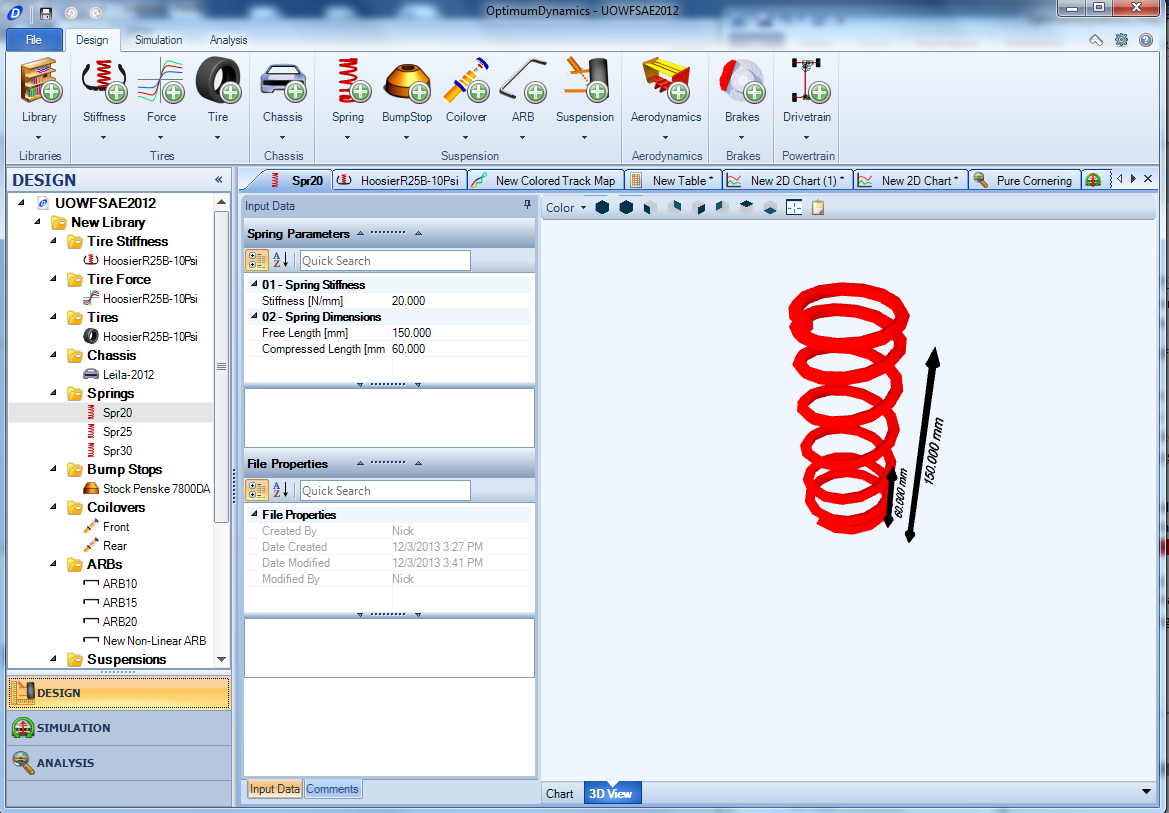
The 3D view is selectable in the document manager and will enable the display of a 3D visualization of the object. The following shortcuts are possible for navigating the object.
| Shortcut Key | Description |
|---|---|
| Left Click + Drag | Rotates the view |
| Middle Click + Drag | Zooms the view |
| Mouse Wheel | Zooms the view |
| Right Click + Drag | Pans the view |
| Right Click | Opens the shortcut menu |
The following visualization options are accessible from the mini-toolbar at the top of the visualization window or from the 3D view shortcut menu (click the right mouse button in the window)
| Input Name | Description |
|---|---|
| Background Color | Select a background color for the 3D view |
| Projection | You can change between parallel and perspective projection |
| Predefined Views | You can switch to a predefined viewing position: Isometric Front Back Left Right Top Bottom |
| Fill Mode | You can specify between point fill, wireframe or solid fill |
| Copy To Clipboard | Copies an image of the visualization area to the clipboard |
| Fit To Window | Fits the suspension zoom level to fill the visualization window |